Make it look like a site
So far the site works but reads as an admin demo. In this short chapter
you will add a small stylesheet, render the CMS menu as a real top
navigation, and replace the unstyled body in base.html with a
proper layout.
Goal
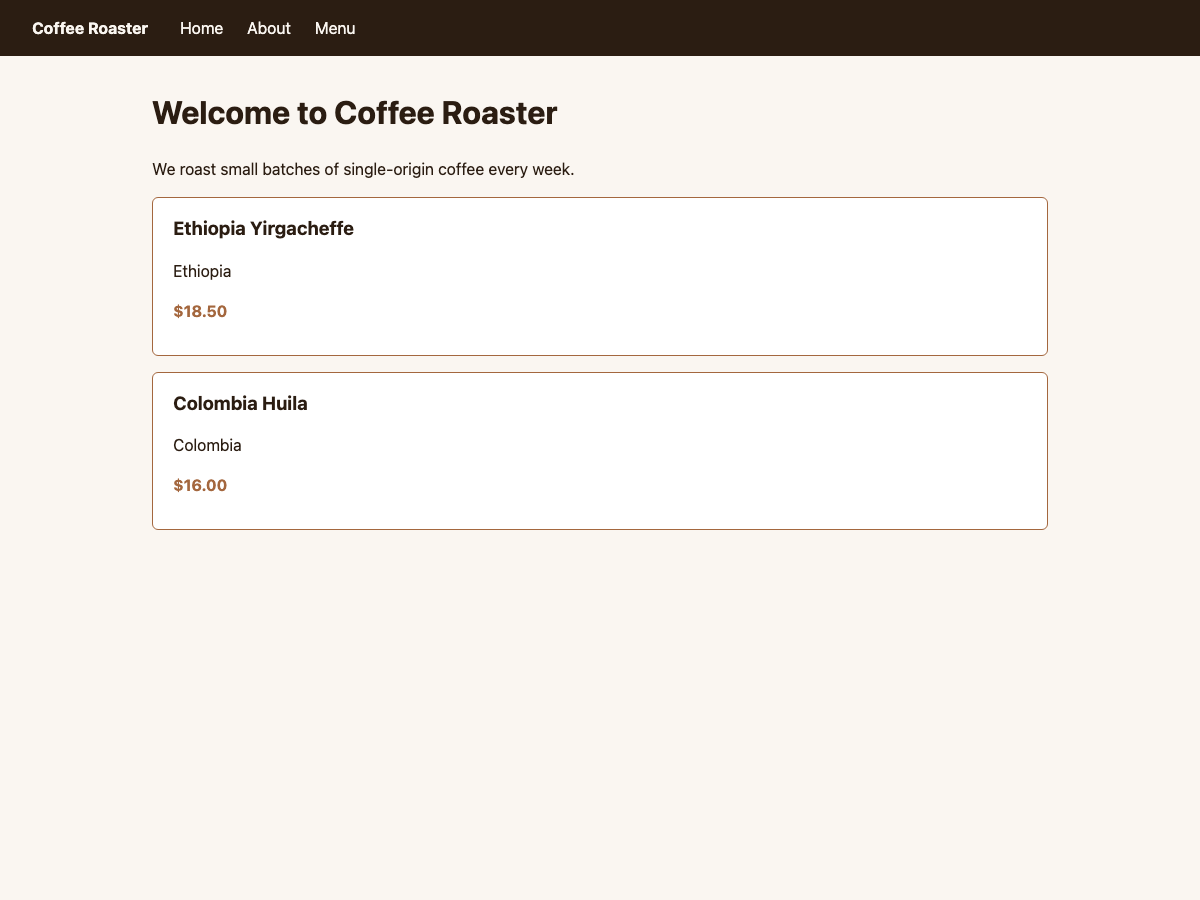
At the end of this chapter, an anonymous visitor lands on a homepage with a navigation bar containing Home, About, and Menu. Pages share a visual style. The coffee cards look like cards.
1. A minimal stylesheet
Create coffeeshop/static/coffeeshop/site.css:
:root {
    --ink: #2b1d12;
    --paper: #faf6f1;
    --accent: #a4673e;
}

body {
    font-family: system-ui, sans-serif;
    margin: 0;
    background: var(--paper);
    color: var(--ink);
    line-height: 1.5;
}

header.site-header {
    background: var(--ink);
    color: var(--paper);
    padding: 1rem 2rem;
    display: flex;
    align-items: center;
    gap: 2rem;
}

header.site-header a {
    color: inherit;
    text-decoration: none;
}

nav.site-nav ul {
    list-style: none;
    display: flex;
    gap: 1.5rem;
    margin: 0;
    padding: 0;
}

main {
    max-width: 56rem;
    margin: 2rem auto;
    padding: 0 1rem;
}

.coffee-card {
    border: 1px solid var(--accent);
    border-radius: 6px;
    padding: 1rem 1.25rem;
    margin: 1rem 0;
    background: white;
}

.coffee-card h3 {
    margin: 0 0 .25rem;
}

.coffee-card .price {
    font-weight: bold;
    color: var(--accent);
}
You do not have to type this — copy any starter stylesheet you like. The point is that styling is ordinary CSS.
Run python manage.py collectstatic --noinput if your project serves
static files via Django’s staticfiles app. During development with
DEBUG = True you usually do not need to.
3. Drop the placeholder Header
The navigation is now part of base.html itself, not a placeholder.
You can either delete the {% placeholder "Header" %} line from
chapter 2 or leave it for future per-page banner content. For this
tutorial, delete it.
Restart runserver. Refresh / in a private window. You should
see:
a dark header with the site name and three menu items,
styled coffee cards on the homepage,
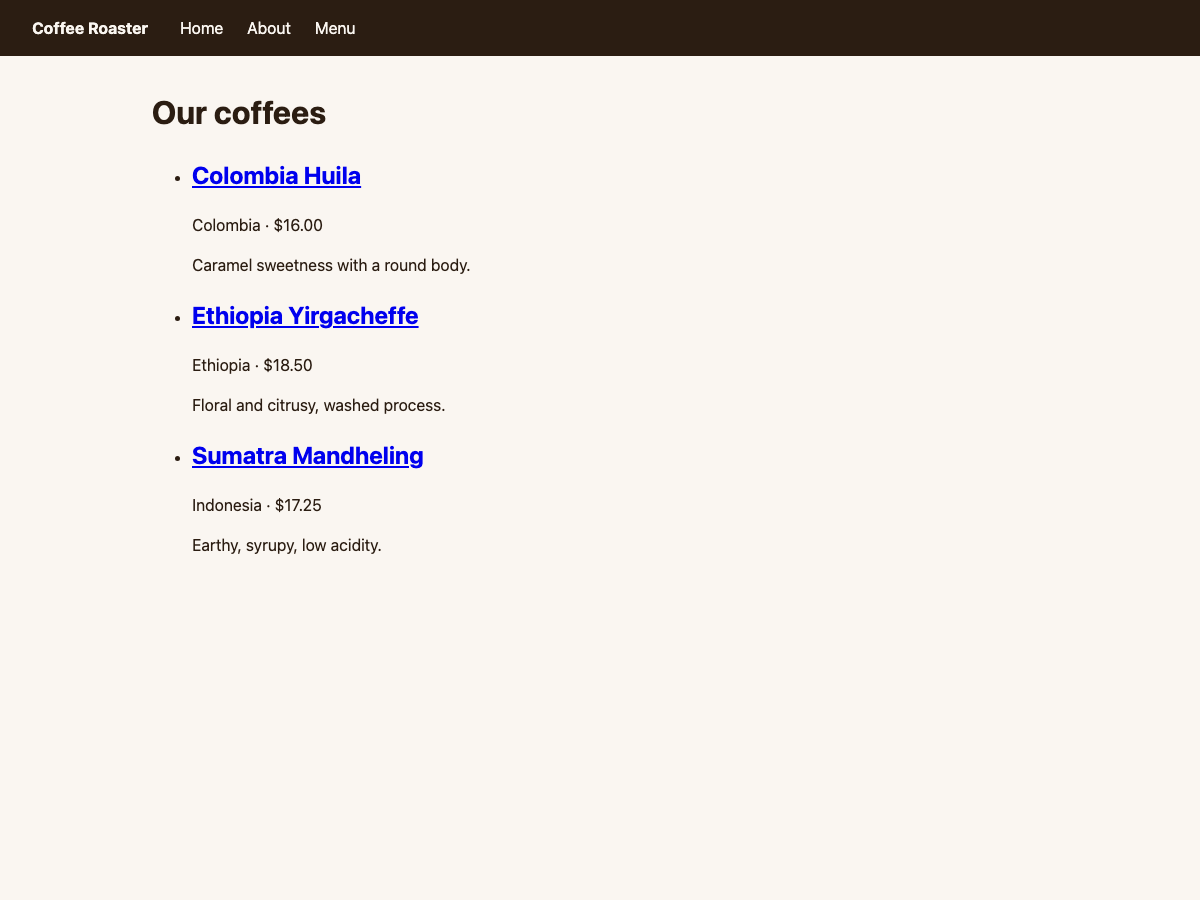
the catalogue at
/menu/inheriting the same chrome.
The catalogue at /menu/ gets the same treatment without any extra
work: it is served by your apphook view, but its template extends
base.html, so the new header, navigation and stylesheet apply
there too:
If the menu shows pages you wanted hidden, mark them as not in navigation in Page → Advanced settings → Menu.
What just happened
Two CMS-specific pieces appeared:
{% show_menu %}reads the page tree and renders a navigation rooted at the start of it. Pages are added, removed, and reordered in the toolbar; the menu reflects it without any code change.The CMS menu is also extendable from Python — you can inject nodes that do not correspond to CMS pages (e.g. blog post entries). See How to customise navigation menus.
Going further
User site navigation — every menu template tag and option.
How the menu system works — soft roots, modifiers, and the full mental model.
How to customise navigation menus — adding non-CMS pages to the navigation.
You have built a working django CMS site. The last short chapter points you at the rest of the documentation.