Templates and placeholders
So far the CMS rendered your pages using the project’s default
base.html, which simply extends a template from djangocms-frontend
and exposes a single Page Content placeholder. In this chapter you
will replace that base template with your own, defining two placeholders
— Header and Body — so editors can manage a header strip and a
body separately.
Goal
At the end of this chapter, the homepage uses a template you wrote and
exposes two placeholders: Header and Body. Editors can place
plugins into either one.
1. Find the project’s base template
The djangocms command already created a base template for you and
told both Django and the CMS about it:
The template lives at
coffeesite/templates/base.html.settings.pyalready pointsTEMPLATES→DIRSatcoffeesite/templates, so Django finds it. You do not need to create a new directory or editDIRS.settings.pyalready registers it for the CMS:CMS_TEMPLATES = [ ("base.html", "Standard"), ]
The second entry of each tuple is the human-readable label shown in the toolbar. Rename
"Standard"to something like"Coffee Roaster — base"if you like; there is no need to add a new entry.
Open coffeesite/templates/base.html. Out of the box it is a two-line
stub that extends a template from djangocms-frontend — that is where the
single Page Content placeholder from the previous chapter comes
from:
{# Replace this with your base template #}
{% extends "bootstrap5/base.html" %}
We will replace this stub with our own markup.
2. Write your own base template
Replace the contents of coffeesite/templates/base.html with:
{% load cms_tags sekizai_tags %}
<!doctype html>
<html lang="en">
<head>
    <meta charset="utf-8">
    <title>{% page_attribute "page_title" %} – Coffee Roaster</title>
    {% render_block "css" %}
</head>
<body>
    {% cms_toolbar %}

    <header>
        {% placeholder "Header" %}
    </header>

    <main>
        {% placeholder "Body" %}
    </main>

    {% render_block "js" %}
</body>
</html>
A few things to notice:
{% placeholder "Name" %}is what creates a placeholder. The name is what editors see in the toolbar.{% cms_toolbar %}is required for the toolbar to render — without it, you cannot edit.{% render_block "css" %}and{% render_block "js" %}come from django-sekizai. Plugins ship their own CSS and JavaScript; when several plugins on the same page need the same asset, sekizai collects them so each block is rendered exactly once, in the right place in the document. Every django CMS template needs the"css"block in<head>and the"js"block just before</body>.
For everything {% placeholder %} accepts, see
Placeholders. For the conceptual story, see
Plugins.
3. Reload the page
The home page already uses base.html, so there is no template to
switch — your new markup takes effect as soon as the file is saved.
Reload the Home page in your browser in edit mode.
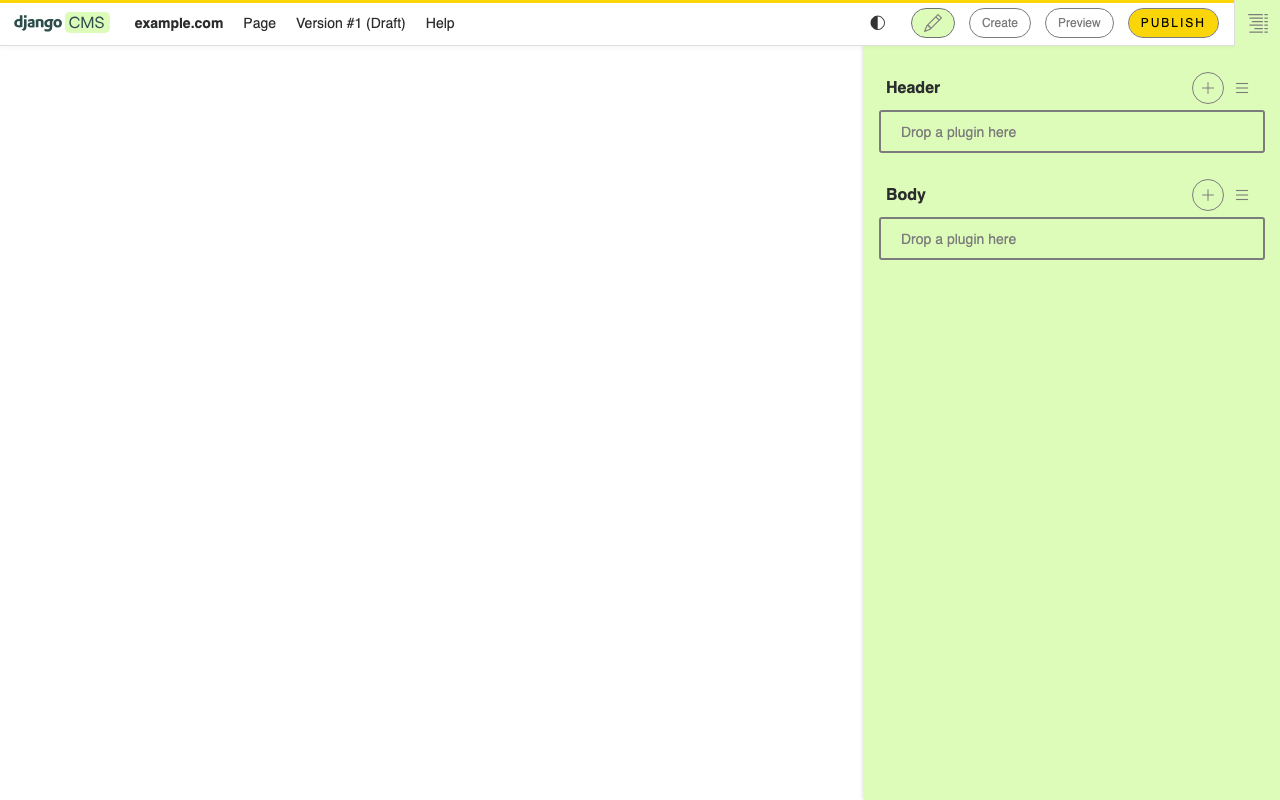
You will see two empty placeholders labelled
HeaderandBody.
If the new placeholders do not appear, restart runserver and reload
the page.
Note
The text you added to Page Content in the previous chapter is
still stored, but it no longer appears: the new template does not
include a Page Content placeholder, so its plugins are not
rendered.
4. Fill the placeholders
Drop a Text plugin into
Headerand type the site name — “Coffee Roaster”.Drop a Text plugin into
Bodyand write a short welcome paragraph.Publish the page.
Visit the homepage in a private window. You should see a header strip above the body content.

What just happened
You now own the markup. Two new ideas appeared:
A template declares which placeholders exist on a page. Different templates can declare different placeholders.
CMS_TEMPLATES is the list of templates editors can pick from.
Anything you would do in a normal Django template — {% block %}
inheritance, {% include %}, {% url %} — works inside a CMS
template. The only CMS-specific tags you need for now are
{% cms_toolbar %} and {% placeholder %}.
A reusable region with static_alias
If you want a region whose content is the same on every page (a
footer, for example), use {% static_alias %} instead of
{% placeholder %}. It works similarly for editors, but the content
is stored once and reused everywhere:
<footer>
    {% static_alias "site_footer" %}
</footer>
Add that to base.html if you like. Do not forget to add {% load djangocms_alias_tags %} at the
top of the file to let Django know about the static alias tag. The full mechanics live in
How to work with templates.
Going further
How to work with templates — multiple templates, inheritance, per-page template overrides.
How to use placeholders outside the CMS — placeholders outside CMS pages (e.g. on your own Django models).
In the next chapter we leave the toolbar and write our first custom plugin in Python.