Your first page
You will create a CMS page, drop a text plugin onto it, and publish it. No code in this chapter — only the django CMS frontend editing interface.
Goal
At the end of this chapter, opening http://localhost:8000/ in a
private browser window (logged out) shows a Home page, and
http://localhost:8000/about/ shows a second About page — each with
a heading and a paragraph that you wrote.
1. Create your first page
You should be logged in as the superuser created during install. The django CMS toolbar is visible at the top of the screen.
In the toolbar, click Create. The wizard opens and asks what you want to create.
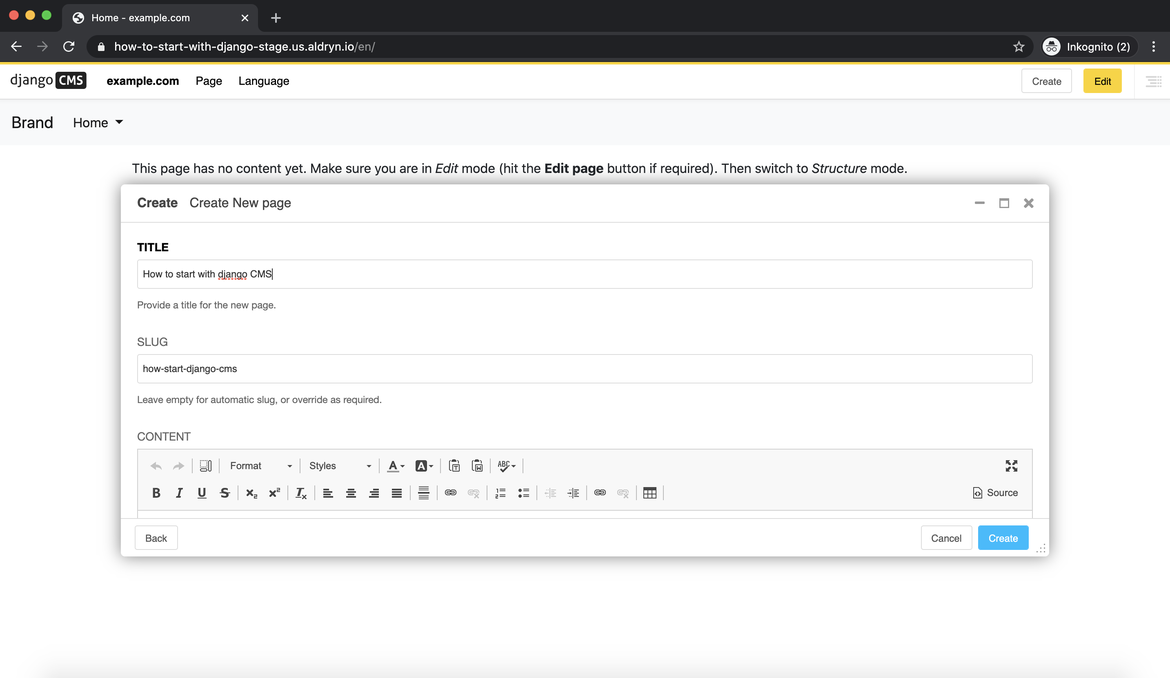
Choose New page and click Next. Set the title to
Home. Leave the Content field empty — we will add the content from the structure board in the next step. Click Create.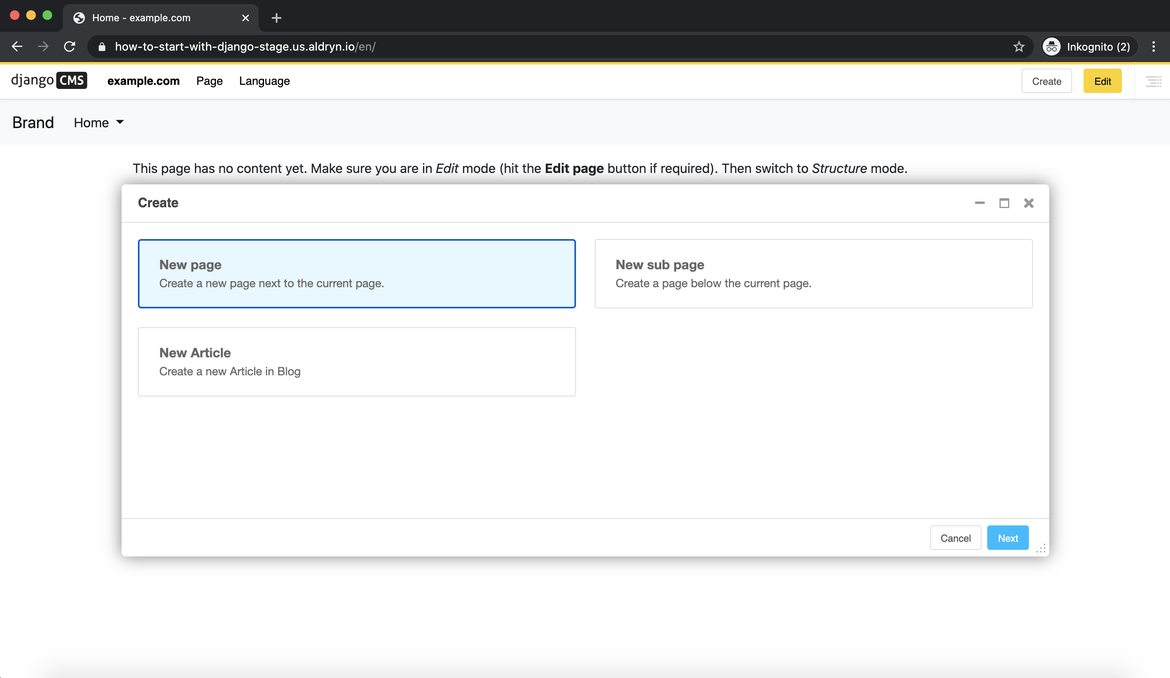
You are now on the new page in edit mode. The address bar shows an
internal editing URL (something like
/admin/cms/placeholder/object/…/edit/…) rather than the page’s own
address — that is normal while you are editing.
Note
The first page you create automatically becomes the site’s
homepage, so it is served at the site root
(http://localhost:8000/) regardless of its slug. You can change
which page is the homepage later from Pages… → the page’s
three dots → Set as home.
2. Add some content
The page is using the default template, which exposes a single
placeholder called Page Content in the middle of the page.
Click the toggle on the top right of the page to open the structure board.
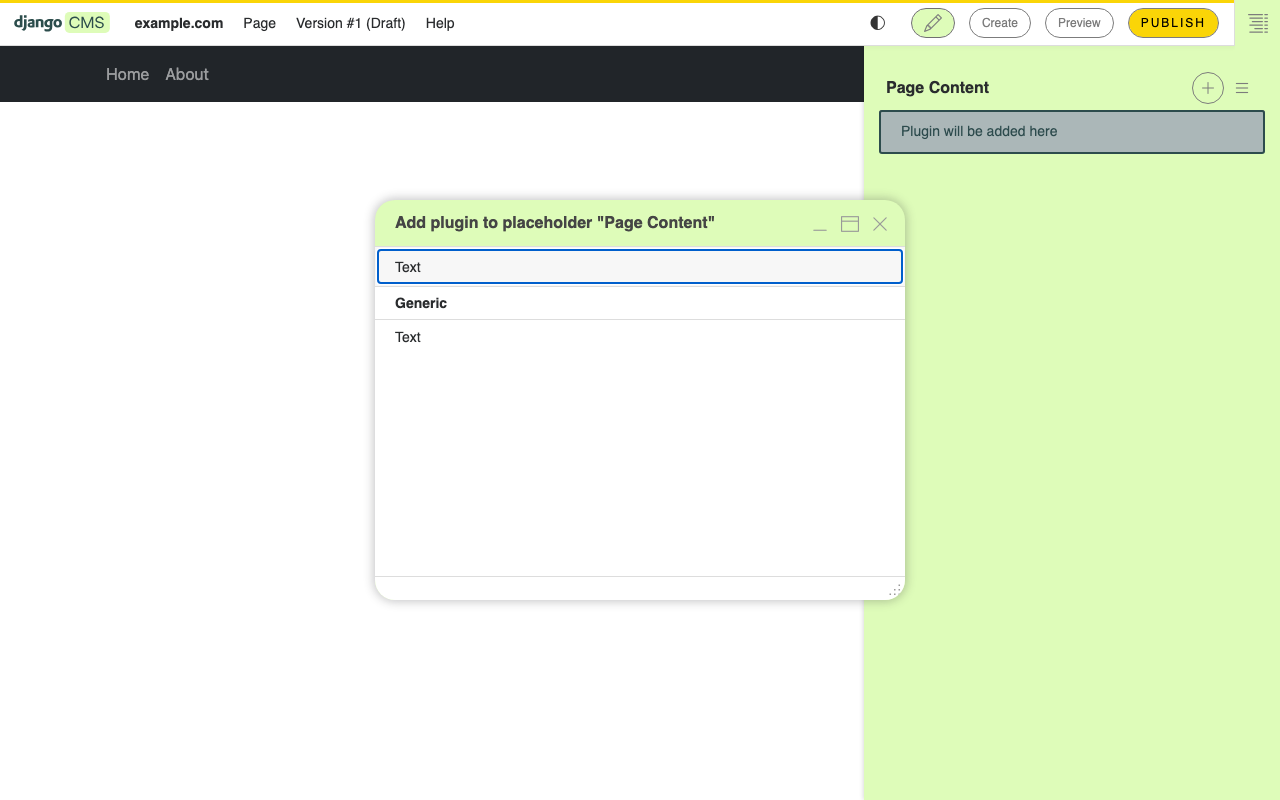
The structure board shows the page’s single placeholder, called
Page Content. Click the plus button next to it to add a plugin.The plugin selector appears. Choose Text.
Type a heading and a short paragraph in the rich-text editor.
Click Save to commit changes to the page.
The page now shows your text.
3. Publish the page
So far the page only exists in draft. Anonymous visitors cannot see it.
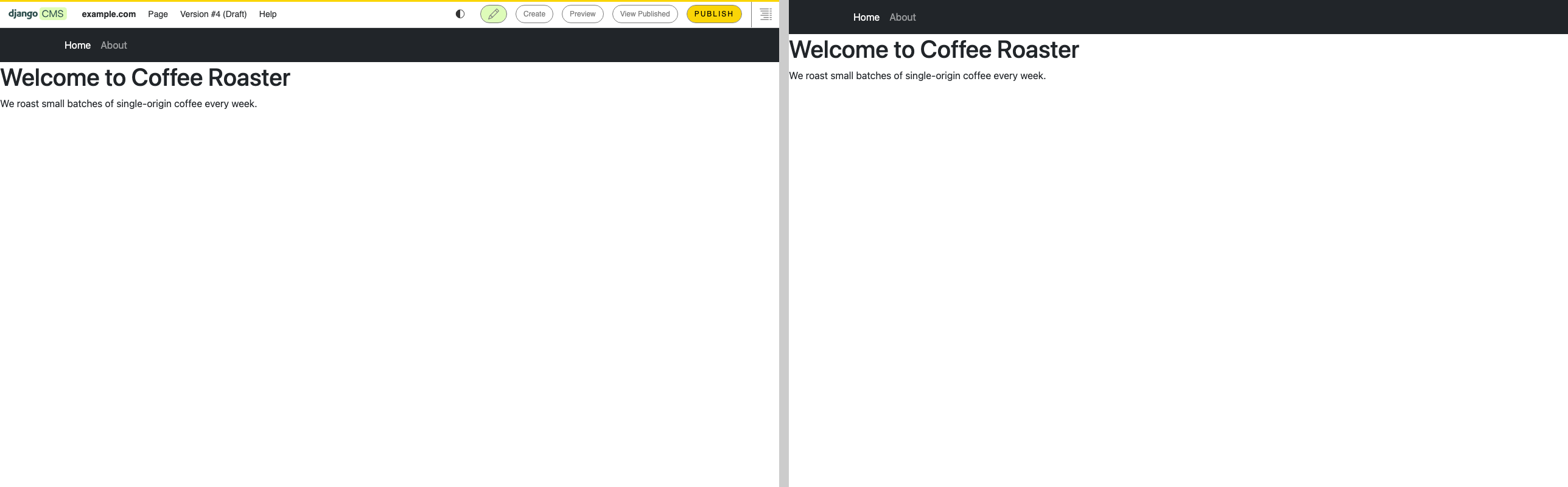
In the toolbar, on the right side click Publish.
Open
http://localhost:8000/in a private browser window or a different browser where you are not logged in.
You should see your Home page.
Note
If you end up on the admin login page instead, the page is not published. When a request for the site root has no page content the anonymous visitor may see, django CMS redirects to the page list in the admin — a convenience for editors who are still setting the site up — and the admin in turn bounces logged-out visitors to the login form. Log in again as your superuser, open Pages…, and check that Home is marked Published.
The same happens if your browser asks for a language you have no page
content in (say /de/ while Home only exists in English).
For any other URL — /about/, for example — an unpublished page
gives a plain 404 instead.
4. Create a second page
Now add a second page that lives at its own URL.
In the toolbar, click Create → New page.
Set the title to
Aboutand leave the Content field empty. Click Create.Add a Text plugin to its
Page Contentplaceholder, just as you did for the home page, and write a heading and a paragraph.Publish the page.
Because the homepage already exists, this second page is served at its
own slug. Open http://localhost:8000/about/ in a private window —
you should see your About page.
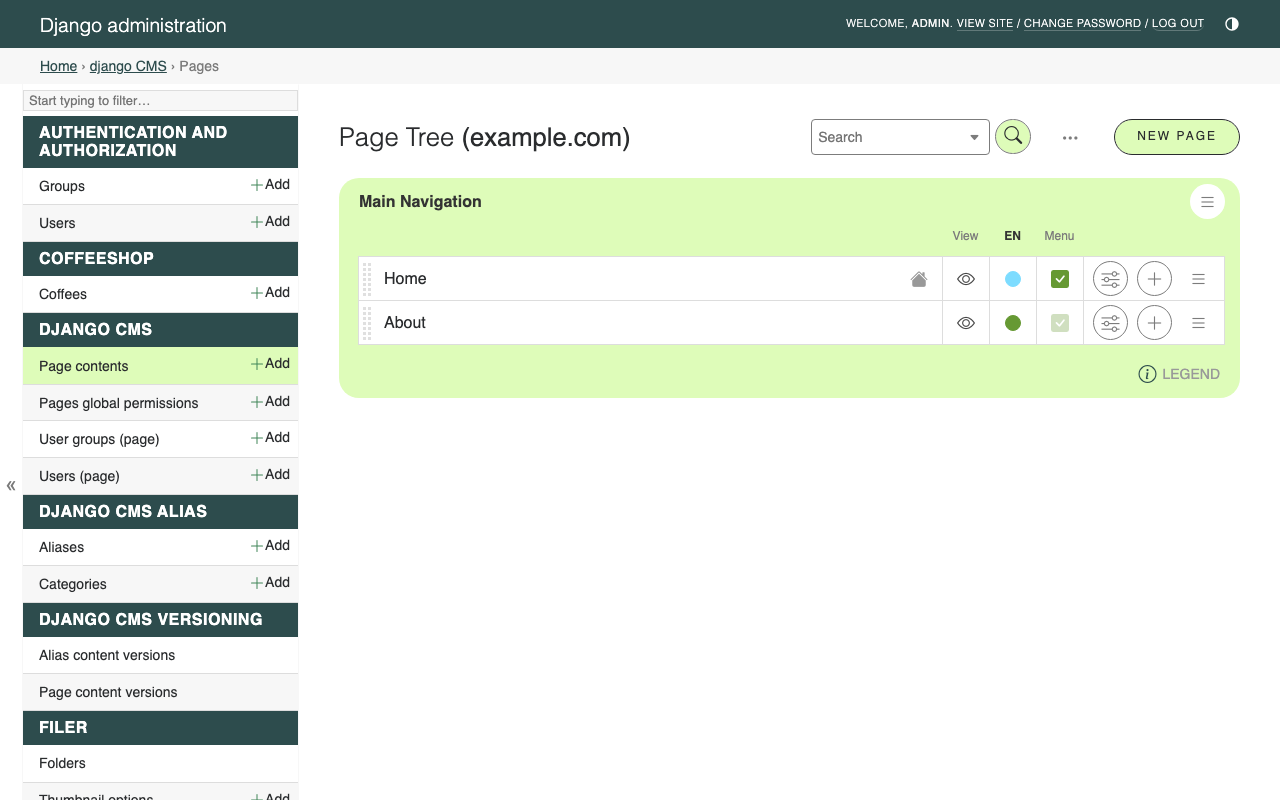
Now http://localhost:8000/ serves the Home page, and
/about/ serves the About page.
What just happened
You created two CMS pages, each of which contained one placeholder, each of which held one plugin. That is the core data model of django CMS:
Page → placeholders → plugins
You will see those three words in every later chapter.
For the conceptual story behind pages and placeholders, see Plugins and Publishing. For the toolbar’s full menu structure, see Toolbar.
Going further
How to serve multiple languages — serve the same pages in multiple languages.
How to manage caching — page caching for production.
In the next chapter we will swap the default template for one of our own and learn how placeholders are declared.