Mount a Django app with an apphook
Plugins are for components dropped into pages. Apphooks are for attaching an entire Django app to a page, so the URL of that page becomes the entry point of the app.
In this chapter you will:
add a
Coffeemodel with list and detail views to thecoffeeshopapp,create an apphook that exposes those views,
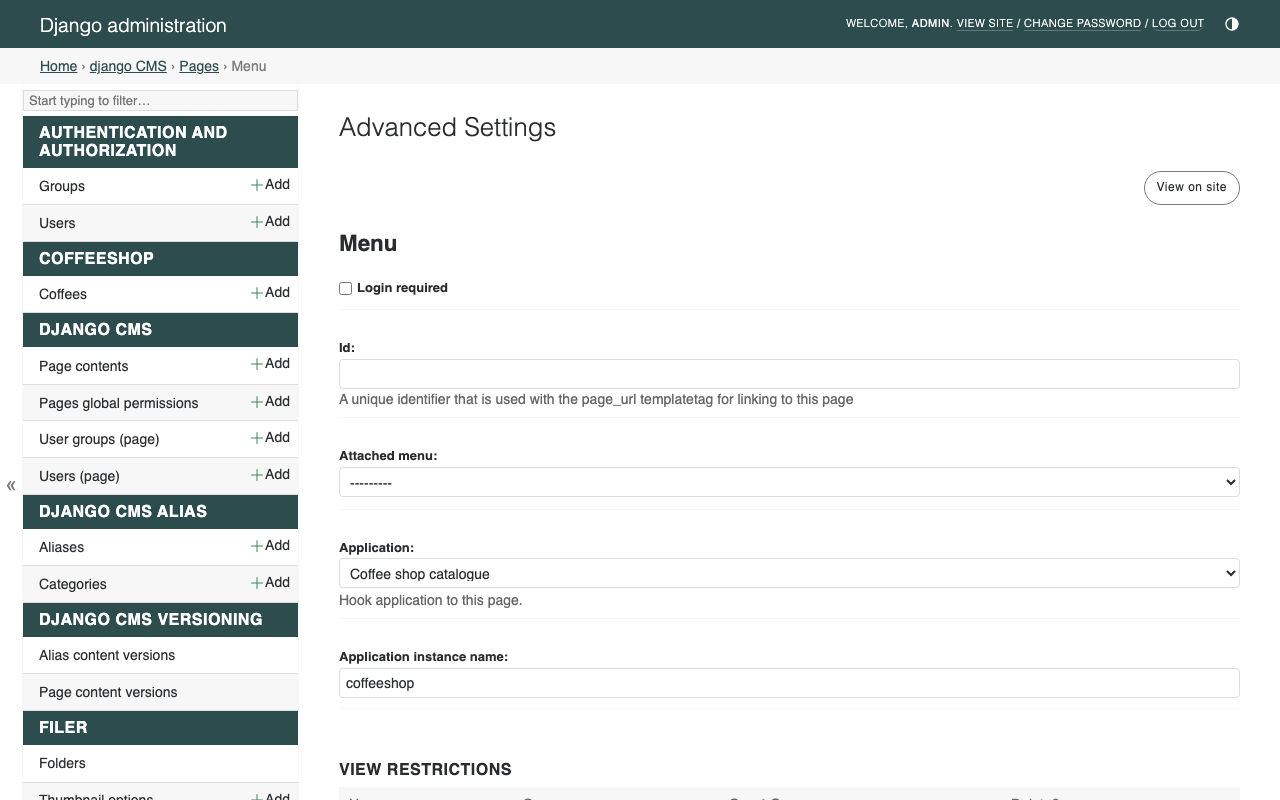
attach the apphook to a new CMS page at
/menu/.
Goal
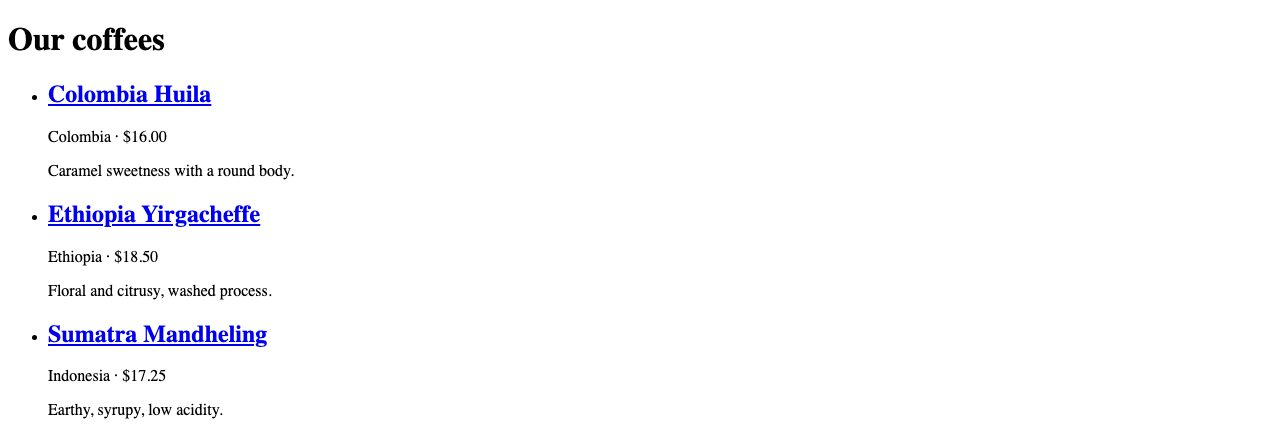
At the end of this chapter, http://localhost:8000/menu/ is served
by your coffeeshop views (not by a CMS placeholder), and each
coffee links to its own detail page below /menu/. Editors can
move the page in the page tree like any other page, and the app moves
with it.
1. A catalogue model
Add this to coffeeshop/models.py (keep the CoffeeCard plugin
model from the previous chapter):
class Coffee(models.Model):
    name = models.CharField(max_length=80)
    origin = models.CharField(max_length=80)
    price = models.DecimalField(max_digits=6, decimal_places=2)
    description = models.TextField(blank=True)

    class Meta:
        ordering = ("name",)

    def __str__(self):
        return self.name
Run the migration:
python manage.py makemigrations coffeeshop
python manage.py migrate coffeeshop
Register the model in coffeeshop/admin.py so you can add a few
rows:
from django.contrib import admin
from coffeeshop.models import Coffee

admin.site.register(Coffee)
Open /admin/ and add three or four coffees.
2. A list view
Create coffeeshop/views.py:
from django.views.generic import ListView
from coffeeshop.models import Coffee


class CoffeeListView(ListView):
    model = Coffee
    template_name = "coffeeshop/coffee_list.html"
    context_object_name = "coffees"
And its template at
coffeeshop/templates/coffeeshop/coffee_list.html:
{% extends "base.html" %}

{% block content %}
    <h1>Our coffees</h1>
    <ul class="coffee-list">
        {% for coffee in coffees %}
            <li>
                <h2>{{ coffee.name }}</h2>
                <p>{{ coffee.origin }} · ${{ coffee.price }}</p>
                <p>{{ coffee.description }}</p>
            </li>
        {% endfor %}
    </ul>
{% endblock %}
(If your base.html from chapter 2 has no {% block content %},
add one wrapping the {% placeholder "Body" %} line.)
A URL conf for the app at coffeeshop/urls.py:
from django.urls import path
from coffeeshop.views import CoffeeListView

app_name = "coffeeshop"

urlpatterns = [
    path("", CoffeeListView.as_view(), name="list"),
]
Do not add this to your project’s main urls.py. The apphook
will do that for us.
3. A detail view
Each coffee should get a page of its own. Add a DetailView next to
the list view in coffeeshop/views.py:
from django.views.generic import DetailView, ListView
from coffeeshop.models import Coffee


class CoffeeListView(ListView):
    model = Coffee
    template_name = "coffeeshop/coffee_list.html"
    context_object_name = "coffees"


class CoffeeDetailView(DetailView):
    model = Coffee
    template_name = "coffeeshop/coffee_detail.html"
    context_object_name = "coffee"
Create its template at
coffeeshop/templates/coffeeshop/coffee_detail.html:
{% extends "base.html" %}

{% block content %}
    <h1>{{ coffee.name }}</h1>
    <p>{{ coffee.origin }} · ${{ coffee.price }}</p>
    <p>{{ coffee.description }}</p>
    <p><a href="{% url 'coffeeshop:list' %}">Back to all coffees</a></p>
{% endblock %}
Route it in coffeeshop/urls.py:
from coffeeshop.views import CoffeeDetailView, CoffeeListView

urlpatterns = [
    path("", CoffeeListView.as_view(), name="list"),
    path("<int:pk>/", CoffeeDetailView.as_view(), name="detail"),
]
Finally, make each coffee in the list link to its detail page. In
coffeeshop/templates/coffeeshop/coffee_list.html, change the name
line to:
<h2><a href="{% url 'coffeeshop:detail' coffee.pk %}">{{ coffee.name }}</a></h2>
4. The apphook
Create coffeeshop/cms_apps.py:
from cms.app_base import CMSApp
from cms.apphook_pool import apphook_pool


@apphook_pool.register
class CoffeeshopApphook(CMSApp):
    app_name = "coffeeshop"
    name = "Coffee shop catalogue"

    def get_urls(self, page=None, language=None, **kwargs):
        return ["coffeeshop.urls"]
app_name is the URL namespace the apphook installs into. Because
coffeeshop/urls.py also declares app_name = "coffeeshop" and
gives the list view name="list", you can reverse it from anywhere
in the project as {% url "coffeeshop:list" %} — even though the
URL itself is decided by whichever CMS page you attach the apphook to.
Restart runserver (apphooks are loaded at startup).
Tip
If you find yourself attaching, moving, or removing apphooks while
you work, add cms.middleware.utils.ApphookReloadMiddleware at
the top of MIDDLEWARE in settings.py. The CMS then
reloads the URL conf in-process when an apphook changes, and you no
longer need to restart runserver for each edit. (The
djangocms quickstart already includes it.)
5. Attach the apphook to a page
In the toolbar:
Create → New page. Title:
Menu. Click Create.Page → Advanced settings…
In the Application dropdown, choose Coffee shop catalogue.
Save.
Publish the page.
Visit http://localhost:8000/menu/ — you should see your coffee
list, rendered by CoffeeListView extending base.html. Click a
coffee’s name: its detail page is served at a URL like /menu/2/,
below the page’s URL.
You can rename the page slug, move the page in the tree, or translate it; the URL of the apphook follows the page.
What just happened
You attached a Django app to a CMS page. The CMS:
finds the page that has the apphook,
prepends that page’s URL to your app’s
urlpatterns,hands every request below that page to your views.
That is why URL changes in the toolbar move the app with them — and
why get_urls returns a whole URL conf rather than a single view:
the list and every detail page below it follow the page together.
Important
Do not create CMS child pages underneath a page that has an apphook. The apphook owns every URL below it; child pages would never be reachable. The conceptual story is in Application hooks (“apphooks”).
Going further
How to create apphooks — apphooks with custom URL patterns,
permissions, and reloading without restarting.How to manage complex apphook configurations — multiple instances of the same apphook on different pages.
Configuring apps to work with django CMS — the full
CMSAppAPI.
One chapter left. We will give the site some style and a real navigation.